What's New in Price Parrot
New features. Faster workflows. Smarter pricing. Every update below is built from real merchant feedback, because the best pricing tool is one that actually solves your problems. Try PriceParrot free and see what's new.
From today, three more languages are live in the dashboard:
- Svenska (Swedish)
- Italiano (Italian)
- Español (Spanish)
How to switch
Open Settings → General and choose your language from the dropdown. Every screen, alert, and panel updates instantly.
Competitor promotions used to force a bad choice: follow the sale and watch your margin disappear, or hold your price and lose the sale. Neither is great.
Sale Price Detection picks up when a competitor moves into promotional pricing, then lets you build rules that respond to it intelligently. Match the sale when the margin holds up. Fall back to your previous strategy when it doesn't. Ignore the sale entirely on protected SKUs. Whatever logic fits your strategy.
Sale prices now display on the product page alongside the regular price, so you can see exactly when a competitor is discounting and by how much.
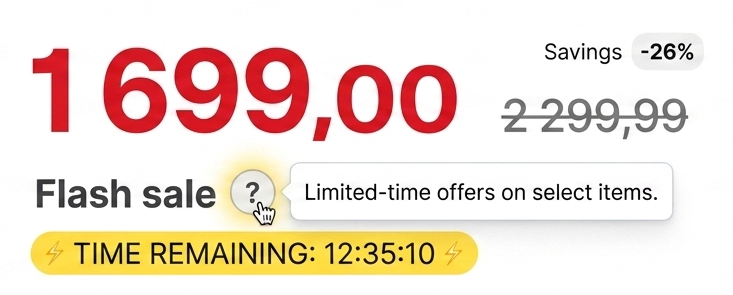
In beta while we widen parsing coverage. Email support@priceparrot.io to request sale tracking for specific competitor sites.
WooCommerce powers a huge share of independent e-commerce, especially for merchants who want full control over their stack and don't want to be locked into a hosted platform. Until now, those merchants could use Price Parrot through the REST API, but native integration meant building it themselves. Today that ends.
WooCommerce is now a fully supported platform, with the same capabilities Shopify and Sello users already have.
What's included
- Automatic product import - connect your store and your full product catalogue flows into Price Parrot, ready to match and reprice
- 2-way sync - update prices, costs, RRP, SKUs, and barcodes from inside Price Parrot and they sync back to WooCommerce automatically
- Quick Sync - push price updates instantly with one click, no waiting for the next repricing interval
- Available on every plan - auto-sync, Quick Sync, and the full feature set work on Starter, Business, and Premium.

How to connect
Setup runs through API credentials. In your WooCommerce admin, generate a set of REST API keys with read/write permissions, then paste them into Price Parrot when you add WooCommerce as a platform. The connection is secure, encrypted, and limited to the data Price Parrot needs to read your products and update prices.
Once connected, the flow is identical to Shopify: products import, you set up matches and rules, and Price Parrot handles the rest.
Why this matters
WooCommerce merchants tend to run more customised stacks than Shopify merchants. They've often built their store to fit a specific workflow, and they want their tools to fit that workflow too, not the other way around. A native integration means competitor tracking, dynamic repricing, and PriceGuard protection now slot directly into a WooCommerce setup without custom development.
If you've been holding off on Price Parrot because the API integration felt like more work than it was worth, this is the moment to start the 14-day free trial.
If you're already running Price Parrot through the API on a WooCommerce store and want help moving over to the native integration, drop a note to support@priceparrot.io and we'll walk you through it.
Two more Shopify properties can now be used in Price Parrot: stock locations and collections. Once enabled, you can use them as filter conditions in repricing rules and alerts, the same way you already filter by brand, tag, SKU, or stock status.
That opens up some natural workflows:
- Reprice only products in a specific collection ("Clearance" gets aggressive rules, "Premium" holds at RRP)
- Build alerts that fire only for products held at a particular location
- Segment large catalogues using the same structure you already maintain in Shopify
Optional by design
These fields aren't on by default. Adding more properties to every product can clutter the interface for merchants who don't need them, so we've made it a setting. Head to Settings → Feed and toggle stock locations or collections on if you want them. Leave them off and nothing changes.
If you're running a multi-location store or rely heavily on Shopify collections to organise your catalogue, this is worth a look. If you're not, you can safely ignore it.
For a long time, your platform connection and your product feed were the same thing. If you connected your Shopify store, Shopify was the feed. Clean for most cases, restrictive for the rest.
Plenty of merchants run more complex setups than that. Maybe your true product catalogue lives in a CSV your supplier updates daily. Maybe your Shopify store only carries part of what you actually sell. Maybe you've got a custom feed enriched with metafield data, supplier costs, or normalised SKUs that doesn't match the raw Shopify export.
Now you can use any of those as your product source, even with the Shopify app connected.
What changed
We've moved feed configuration into Settings and separated it from your platform connection. Two settings, two jobs:
- Platform connection: how Price Parrot syncs prices back to your store (Shopify, Sello, etc.)
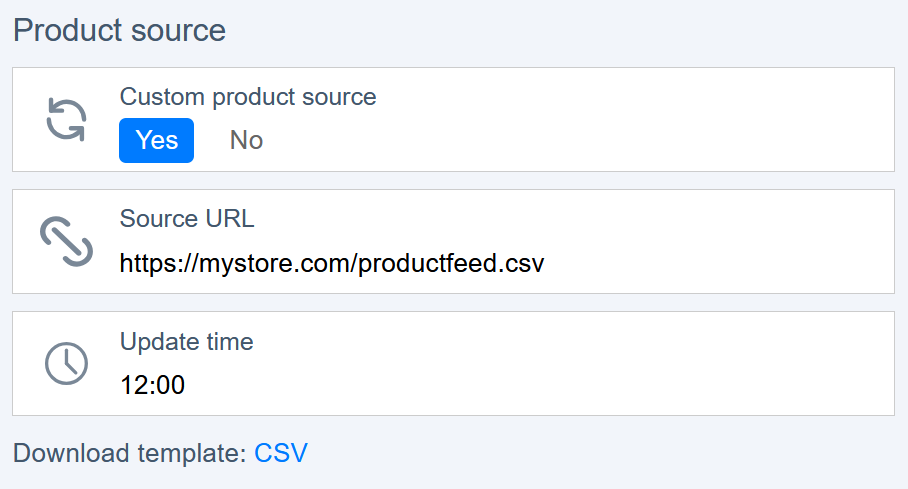
- Product source: where Price Parrot reads your product data from, the standard platform feed or a custom URL you provide
You can mix and match. Connect Shopify for the 2-way sync benefits while pulling product data from a custom CSV. Whichever combination matches how your business actually runs.
How to set it up
Head to Settings → Feed and toggle Custom Product Source to Yes. Drop in your feed URL, set an update time, and you're done. There's a CSV template available for download if you're building a feed from scratch and want the column structure to match what Price Parrot expects.
The product page used to do a lot at once. Competitor matches, variant data, pricing history, repricing rules, all stacked into one long scroll. It worked, but it wasn't pleasant. Finding what you needed often meant hunting.
Now it's tabbed.
Open any product and you'll see clean tabs across the top, each one focused on a single job:
- Competitors: review every competitor matched to this product, with prices, statuses, and direct links
- Variants: see all variants in one place, with their individual prices and matches
- Search Discovery: run discovery for new competitor matches without leaving the page
- Price history: the dynamic pricing graph with full history and competitor overlays, on its own dedicated tab
That last one is the biggest change. Search Discovery used to live in the Product Overview only. Now it sits inside the product page itself, so when you're already reviewing a product and realize you want more matches, you can run discovery, approve new matches, and keep working, all without flipping back and forth.

Existing data is exactly where it was, just organised into the right tab. Repricing rules and product details all stay accessible the same way they always were.
If you used to navigate the product page in a specific way and the new layout makes a habit harder rather than easier, tell us at support@priceparrot.io. The tab structure is easy to refine and we'd rather hear about a friction point than have you work around it.
The dashboard exists to answer one question fast: did anything change overnight? When the answer takes ten seconds to arrive, the dashboard stops being useful.
We rebuilt it.
Dashboard load times are down from 8 to 12 seconds to 1 to 2 seconds. Same data, same widgets, just faster.
What changed under the hood
- Async widget loading: each widget on the dashboard now loads independently instead of waiting for the slowest one to finish. The page becomes interactive almost instantly, and individual widgets fill in as they're ready.
- 5-minute caching: widget data is cached for five minutes, so flipping between pages and coming back doesn't trigger a full reload.
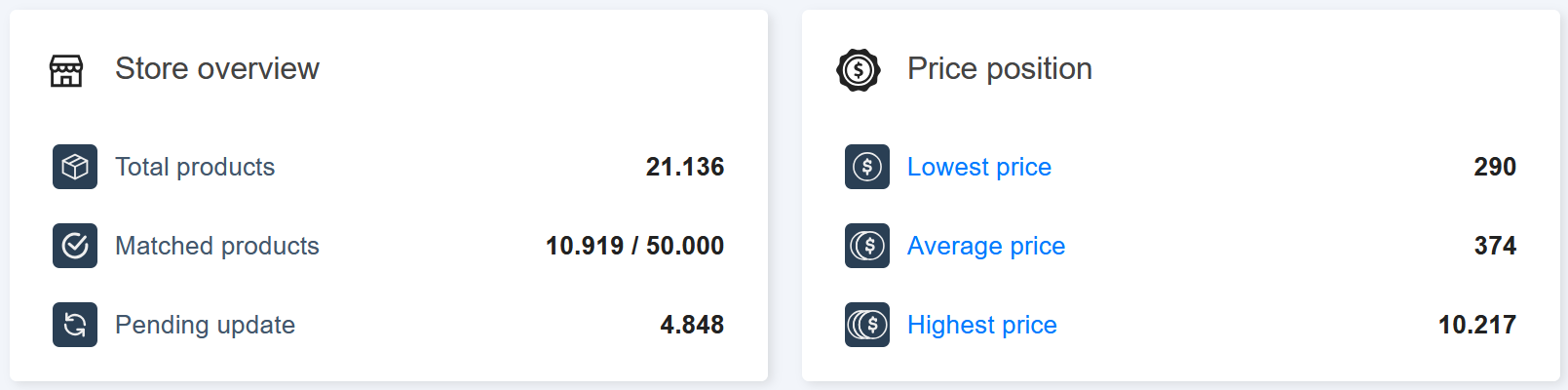
Price alerts are useful right up until they aren't. If a competitor nudges their price by 12 cents, you don't need an email about it. If you only care when prices drop (because that's when you'd want to react), getting flooded with increase notifications is just noise.
Two new controls clean that up.
Direction filter
On any price change alert, you can now choose what to be notified about:
- Increases only - useful if you're hunting for moments to raise your own prices
- Decreases only - useful if you mainly react when competitors undercut
- Both - the existing behavior, still the default
Minimum change threshold
You can also set a threshold below which changes won't trigger an alert at all. The threshold accepts a fixed amount, a percentage, or both at the same time.
Example: set the threshold to $1 + 2%, and a competitor would need to move their price by at least one dollar AND two percent before an alert fires. Anything smaller gets ignored.
This is especially useful for:
- High-volume catalogues where small daily fluctuations clog your inbox
- Low-margin categories where only meaningful moves change your strategy
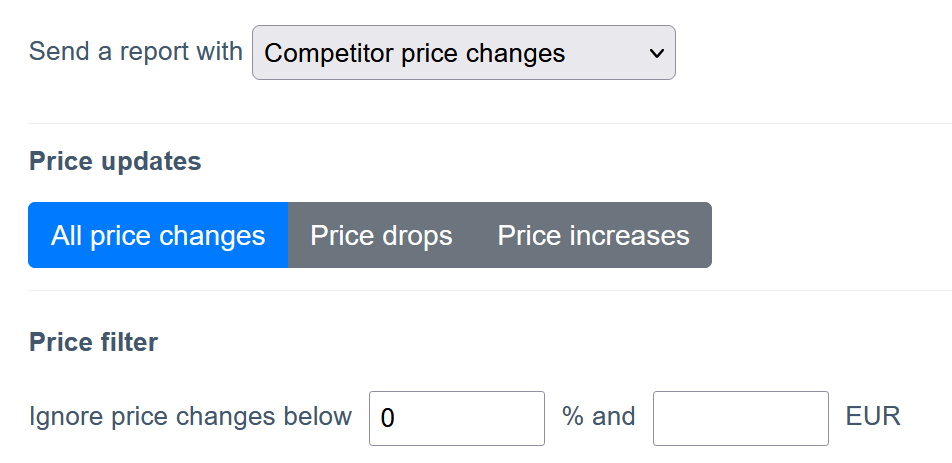
Open any price change alert from your Alerts Overview and you'll see the new direction and threshold options. Existing alerts keep their current behaviour, you only adjust them if you want to.
Standard product fields work for most stores, but plenty of merchants store the values that actually matter to their pricing strategy in metafields. Real cost. Supplier price. Internal MAP. A custom competitor URL. The list goes on.
Until now, Price Parrot only read the standard Shopify fields. If your real cost lived in a metafield called custom.true_cost, you had no way to use it.
That changes today!
You can now map any Shopify metafield to its Price Parrot equivalent. Cost, compare-at price, competitor URLs, and other product properties can all be sourced from metafields instead of (or in addition to) the standard fields.
Search Discovery already takes the manual work out of finding competitor matches. But clicking the search icon on every product, one by one down the page, gets old fast.
Bulk Discovery fixes that.
Select the products you want from your Product Overview, apply the bulk action, and Search Discovery runs across all of them in one go. Move to the next page, do the same, and you'll work through your catalogue in a fraction of the clicks.
How it works
Head to your Product Overview, tick the products you want to match (or select all on the current page), and choose Bulk Discovery from the bulk actions menu. Search Discovery starts pulling potential competitor matches in the background while you keep working.
When the results come in, review and approve them the same way you always have, individually or with bulk-approve on each search result.
P.S. Quick keyboard tip: tap the left and right arrow keys to flip between products in the overview.